Enroll exotic servers to FreeIPA

Following procedure describe enrollment procedure to enroll Linux servers to FreeIPA. Most popular distributions have freeipa-client for them. this procedure designed for SLES, but similar concept should work with other distros.

Preparation:

Install SLES with following modules (or activate mentioned modules)

sle-module-basesystem 
sle-module-containers
PackageHub
sle-module-server-applications
sle-module-python3

Choose system role: minimal.

Use XFS (or other you prefer. do not use btrfs).

Move swap partition to dedicated partition.

Install default applications:

zypper install docker docker-compose iputils vim tcpdump wget sudo yast2-auth-client sssd sssd-ipa krb5-client openldap2-client sssd-ad cyrus-sasl-gssapi

Start docker

systemctl start docker
systemctl enable docker

Enrollment process. IDM server side.

Login to IDM server:

https://linux-idm1.your-domain.ca

Enable Admin user for enrollment process or use another user with enrollment rights for enrollment procedure.

ssh to IDM server:

ssh user@linux-idm1.your-domain.ca

connect to FreeIPA container:

docker exec -it freeipa-server /bin/bash

Obtain FreeIPA user credentials for current session, add new host to IDM, change configuration of host, get Kerberos keys for host.

kinit admin
ipa host-add new-server.your-domain.ca --ip-address=100.100.100.100
ipa host-add-managedby --hosts=linux-idm1.your-domain.ca new-server.your-domain.ca
ipa-getkeytab -s linux-idm1.your-domain.ca -p host/new-server.your-domain.ca.ca -k /data/new_server.krb5.keytab

Login to IDM server.

https://linux-idm1.your-domain.ca

Disable user “Admin”.

Enrollment Process. Client server side.

ssh to server you want to enroll

ssh user@new-server.your-domain.ca

Install default applications:

zypper install docker docker-compose iputils vim tcpdump wget sudo yast2-auth-client sssd sssd-ipa krb5-client openldap2-client sssd-ad cyrus-sasl-gssapi

Copy new_server.krb5.keytab from IDM server and do:

mv ~/new_server.krb5.keytab /etc/krb5.keytab
chown root:root /etc/krb5.keytab
chmod 0600 /etc/krb5.keytab

Install IDM certificate:

mkdir /etc/ipa
wget -O /etc/ipa/ca.crt https://linux-idm1.your-domain.ca/ipa/config/ca.crt --no-check-certificate
cp /etc/ipa/ca.crt /etc/pki/trust/anchors/ipa.crt
update-ca-certificates

Edit /etc/nsswitch.conf. Replace with new values:

passwd:     files sss
shadow:     files sss
group:      files sss
hosts:          files dns
networks:       files dns
services:       files sss
protocols:      files
rpc:            files
ethers:         files
netmasks:       files
netgroup:       files nis sss
publickey:      files
bootparams:     files
automount:      files nis sss
aliases:        files
sudoers:        files sss

Edit /etc/sssd/sssd.conf. Replace with new values:

[sssd]
config_file_version = 2
services = nss, pam, ssh, sudo
domains = your-domain.ca

[nss]
homedir_substring = /home

[pam]

[domain/your-domain.ca]
cache_credentials = True
krb5_store_password_if_offline = True
krb5_realm = YOUR_REALM.YOUR_DOMAIN.CA
ipa_domain = your-domain.ca
id_provider = ipa
auth_provider = ipa
access_provider = ipa
ipa_hostname = new-server.your-domain.ca
chpass_provider = ipa
ipa_server = linux-idm1.your-domain.ca
ldap_tls_cacert = /etc/ipa/ca.crt
ldap_user_ssh_public_key = ipaSshPubKey

Edit /etc/krb5.conf Replace with new values:

includedir  /etc/krb5.conf.d

[libdefaults]
default_realm = YOUR_REALM.YOUR_DOMAIN.CA
dns_lookup_realm = false
dns_lookup_kdc = false
rdns = false
dns_canonicalize_hostname = false
ticket_lifetime = 24h
forwardable = true
udp_preference_limit = 0
default_ccache_name = KEYRING:persistent:%{uid}

[realms]
LINUX.CC.UREGINA.CA = {
  kdc = linux-idm1.your-domain.ca:88
  master_kdc = linux-idm1.your-domain.ca:88
  admin_server = linux-idm1.your-domain.ca:749
  kpasswd_server = linux-idm1.your-domain.ca:464
  default_domain = your-domain.ca
  pkinit_anchors = FILE:/var/lib/ipa-client/pki/kdc-ca-bundle.pem
  pkinit_pool = FILE:/var/lib/ipa-client/pki/ca-bundle.pem
}

[domain_realm]
.your-domain.ca = YOUR_REALM.YOUR_DOMAIN.CA
your-domain.ca = YOUR_REALM.YOUR_DOMAIN.CA
.your-realm.your-domain.ca = YOUR_REALM.YOUR_DOMAIN.CA
your-realm.your-domain.ca = YOUR_REALM.YOUR_DOMAIN.CA
new-server.your-domain.ca = YOUR_REALM.YOUR_DOMAIN.CA

[logging]
  kdc = FILE:/var/log/krb5/krb5kdc.log
  admin_server = FILE:/var/log/krb5/kadmind.log
  default = SYSLOG:NOTICE:DAEMON

execute to configure PAM:

pam-config -a --sss

Edit /etc/pam.d/sshd. Add:

session required pam_mkhomedir.so skel=/etc/skel/ umask=0077 

Edit /etc/ssh/sshd_conf. Add or update:

PubkeyAuthentication yes
AuthorizedKeysCommand /usr/bin/sss_ssh_authorizedkeys
AuthorizedKeysCommandUser nobody

Comment out following lines in /etc/sudoers

##Defaults targetpw   # ask for the password of the target user i.e. root
##ALL   ALL=(ALL) ALL   # WARNING! Only use this together with 'Defaults targetpw'!

Restart services

service sshd restart
systemctl enable sssd
systemctl start sssd
systemctl start docker
systemctl enable docker

Try to login from different window. Now it should work. 🙂
FreeIPA in docker to auth your Linux servers in one place

Scenario: Customer have pack of Linux servers with local auth. Goal is to deploy FreeIPA cluster to authenticate and authorize users to access to Linux servers. Solution should be Dockerized.

Solution: deploy 1 Master FreeIPA server and 2 replica FreeIPA servers in Docker containers. After that – enroll Linux servers to FreeIPA.

Preparation:

Use Ubuntu 24.04 in “base server” configuration. Assign IP and DNS.

Master server deployment (first server in cluster):

Update Os and install necessary packages

apt update
apt upgrade -y
apt install -y ca-certificates curl wget net-tools

Install Docker:

wget -O /etc/apt/keyrings/docker.asc https://download.docker.com/linux/ubuntu/gpg
chmod a+r /etc/apt/keyrings/docker.asc
apt install -y docker-ce docker-ce-cli containerd.io docker-buildx-plugin docker-compose-plugin

Prepare shell script to run/stop container:

cat << EOF > /opt/ipa/restart_idm.sh
#!/bin/sh
docker compose -f /opt/ipa/docker-compose.yml down
docker compose -f /opt/ipa/docker-compose.yml up -d
EOF
chmod +x /opt/ipa/restart_idm.sh

Create dirs and docker-compose.yml

mkdir /opt/ipa && cd /opt/ipa && mkdir /opt/ipa/data
touch /opt/ipa/docker-compose.yml

Content of docker-compose.yml

cat << EOF > /opt/ipa/docker-compose.yml
services:
  freeipa-server:
    image: freeipa/freeipa-server:fedora-rawhide-4.12.1
    container_name: freeipa-server
    hostname: linux-idm1.your-domain.ca
    privileged: true
    restart: always
    volumes:
      - /opt/ipa/data:/data
    ports:
      - "80:80"
      - "443:443"
      - "389:389"
      - "636:636"
      - "88:88"
      - "464:464"
      - "88:88/udp"
      - "464:464/udp"
      - "123:123/udp"
    environment:
      - PASSWORD=SuperPassword123
    command: ipa-server-install -U -n your-domain.ca -r YOUR_REALM.YOUR_DOMAIN.CA --no-ntp
    networks:
      - inside
networks:
  inside:
    external: false
    ipam:
      config:
        - subnet: 10.100.10.0/24
EOF

Execute restart script to launch container

/opt/ipa/restart_idm.sh

Watch installation process:

docker logs -f freeipa-server

Wait for message “FreeIPA server configured.

Login to web-UI: http://linux-idm1.your-domain.ca

Login: admin password:SuperPassword123

Edit file /opt/ipa/docker-compose.yml

Remove lines:

environment: PASSWORD=SuperPassword123
command: ipa-server-install -U -n your-domain.ca -r YOUR_REALM.YOUR_DOMAIN.CA --no-ntp

restart IDM server with:

/opt/ipa/restart_idm.sh

YAY!!!! After container restart (this will take some time), server will be ready for work.

For replica server you do all the same tasks until you reach docker-compose.yml part.

Here docker-compose.yml for replica servers:

cat << EOF > /opt/ipa/docker-compose.yml
services:
  freeipa-server:
    image: freeipa/freeipa-server:fedora-rawhide-4.12.1
    container_name: freeipa-server
    hostname: linux-idm2.your-domain.ca
    privileged: true
    restart: always
    volumes:
      - /opt/ipa/data:/data
    ports:
      - "80:80"
      - "443:443"
      - "389:389"
      - "636:636"
      - "88:88"
      - "464:464"
      - "88:88/udp"
      - "464:464/udp"
      - "123:123/udp"
    command: ipa-replica-install -U --domain=your-domain.ca -r YOUR_REALM.YOUR_DOMAIN.CA --server=linux-idm1.your-domain.ca --no-ntp --admin-password=SuperPassword123
    networks:
      - inside
networks:
  inside:
    external: false
    ipam:
      config:
        - subnet: 10.100.10.0/24
EOF

Rest is similar to Master server:

Start container.

Wait for message “FreeIPA server configured.”

Edit /opt/ipa/docker-compose.yml to remove line with “command”

Restart container.

After restart server will be ready for work.

Removing any master server from cluster:

Note: You can remove only endpoint/branch master server from cluster. Otherwise, replication within cluster will be broken. You will need DM password.

On any OTHER master server in cluster execute:

docker exec -it freeipa-server /bin/sh

This will grant you access to shell of docker container with IDM server running on it.

Execute to remove server from cluster.

ipa-replica-manage del <server_to_remove_FQDN>

Enroll Linux server to IDM.

To enroll server, you will need account at IDM with enrollment rights.

Enrollment process need FQDN to be specified for enrolling server

Check hostname:

hostname

Update hostname:

hostnamectl set-hostname your-server-hostname.your-domain.ca

Install IPA client and enroll server:

apt install freeipa-client
ipa-client-install --domain=your-domain.ca --server=linux-idm1.your-domain.ca --realm=YOUR_REALM.YOUR_DOMAIN.CA --mkhomedir

option –mkhomedir will create homedirs for new users, who login to server.

Protect your WordPress-based web site from AI-bots

Scenario: Customer web-site hit hard by AI bots. Server run Apache. Only one virtual host present. Task is to protect service from AI-bots at the same time allow normal traffic.

Configuration fragment of Apache server:

<VirtualHost *:443>
  ServerName your-great-site.ca
  SSLEngine on
</VirtualHost>

Solution implementation steps:

  • Install docker
  • Make sure mod_proxy for Apache installed/enabled
  • Change Apache configuration to proxy requests to Anubis
  • Add Apache configuration to serve as backend for Anubis
  • Restart Apache
  • Configure Anubis docker container for basic operations
  • Start Anubis container

Implementation (following process for SLES. for other Linux distro it is pretty similar with minimal adjustments).

Install docker-compse:

zypper install docker docker-compose -y

Start docker service:

systemctl enable --now docker.service

Create directory structure and docker-file:

mkdir -p /opt/anubis
mkdir -p /opt/anubis/config
touch /opt/anubis/docker-compose.yml
touch /opt/anubis/config/policies.yml

Content of docker-compose.yml:

services:
  anubis:
    image: ghcr.io/techarohq/anubis:latest
    container_name: anubis
    restart: always
    network_mode: "host"
    ports:
      - "127.0.0.1:8923:8923"   # bind only to localhost
    environment:
      # TARGET must point to your internal WordPress Apache backend
      - TARGET=http://127.0.0.1:8023
      - COOKIE_DOMAIN=your-great-site.ca
      - OG_PASSTHROUGH=true
      - OG_EXPIRY_TIME=1h
      - OG_CACHE_CONSIDER_HOST=true
      # Add this to allow your domain
      - REDIRECT_DOMAINS=your-great-site.ca
    volumes:
      - ./config:/data

Content of policies.yml (very basic policy. you can adjust it at your will):

allow:
  - path: '/robots.txt'
  - path_regex: '^/wp-content'
  - path_regex: '^/wp-includes'
  - path_regex: '^/wp-admin/admin-ajax.php'
  - user_agent_regex: 'Googlebot'
  - ip_cidr: '203.0.113.0/24'
challenge:
  - path_regex: '^/wp-admin'
block:
  - path_regex: '^/api/scrape'

Anubis part is done. let`s start container:

docker-compose up -d

Apache preparation.

First check if mod proxy is installed/enabled. ATTN!!!! This is a key point. If no mod proxy installed/working, process will fail.

a2enmod proxy
a2enmod proxy_http
apachectl -M | grep proxy

Modify initial Virtualhost configuration to pass all incoming traffic to Anubis. You should get something like this:

<VirtualHost *:443>
  ServerName your-great-site.ca
  SSLEngine on

  # Preserve original host & IP headers for Anubis
  ProxyPreserveHost On
  RequestHeader set X-Forwarded-Proto "https"
  RequestHeader set X-Forwarded-For %{REMOTE_ADDR}s
  RequestHeader set X-Real-IP %{REMOTE_ADDR}s
  RequestHeader set X-Forwarded-Proto https

  ProxyPass        /  http://127.0.0.1:8923/
  ProxyPassReverse /  http://127.0.0.1:8923/

</VirtualHost>

Create second listener for backend of site. it should be something like this:

Listen 8023

<VirtualHost *:8023>
    ServerName your-great-site-backend.ca

    DocumentRoot /srv/www/htdocs
    <Directory "/srv/www/htdocs">
        Options FollowSymLinks
        AllowOverride All
        Require all granted
    </Directory>

    # Optional: disable SSL on backend
    SSLEngine off

    ErrorLog /var/log/apache2/wordpress-backend-error.log
    CustomLog /var/log/apache2/wordpress-backend-access.log combined
</VirtualHost>

Check configuration sanity and restart apache

apachectl -t
service httpd stop
service httpd start

Enjoy your server free of unnessessary workload from AI bots!

How to install specific application to docker container

Sometimes we need to add some application to pre-configured docker container. We can do this with “docker build” in a few easy steps.

Step 1. Create Dockerfile. In it add source docker container to add requsted application installation procedure. Sampe Dockerfile

FROM Caddy/Caddy:latest

# Install mtr
USER root
RUN yum update -y
RUN yum install -y mtr

Step 2. Build docker container from Dockerfile.

#docker build --tag caddy-with-mtr .

Step 3. Modify docker-compose.yml file. replace original image with new one, you build on previous step. Fragment of modified docker-compose.yml file

services:
  caddy:
    image: caddy-with-mtr:latest
    restart: unless-stopped

Step 4. And finally start fresh-build docker container.

/usr/local/sbin/docker-compose -f /opt/docker/docker-compose.yml up -d

HowTo Kill all Docker containers and remove all data

If you need for any reason to kill all docker containers and remove all docker-related data, use following procedure:

docker stop $(docker ps -a -q) && docker rm $(docker ps -a -q)
docker rmi $(docker images -q)
docker network rm $(docker network ls -q)
docker volume rm $(docker volume ls -q)
docker system prune --all --volumes --force

What this will do?

  1. Stop and delete all docker containers
  2. Remove all docker images
  3. Remove all docker interfaces
  4. Remove all docker volumes
  5. Clear-up Docker system leftovers…

This will not uninstall Docker and/or docker compose, but now your system will be clean like after initial docker installation.

VRRP on Linux. Use Keepalived for HA and load balancing.

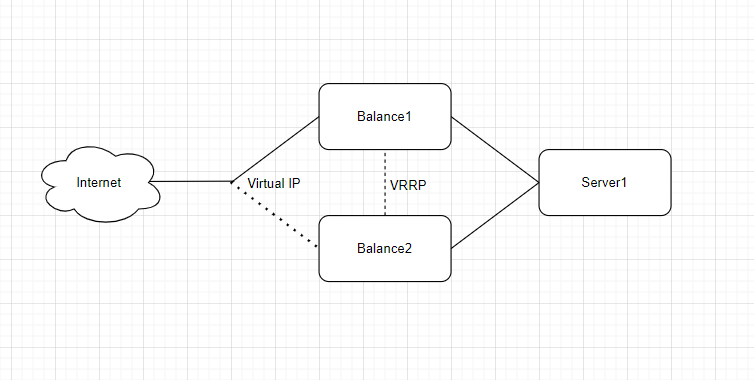
VRRP – Virtual Redundancy Routing Protocol in Linux systems could be implemented with keepalived.

Also, keepalived could be used to implement High Availability (active/passive) or load balancing (active/active).

Four aspects need to be configured on a VRRP HA server: keepalived, iptables, sysctl and the service itself (rsyslog in this case).

Sysctl.

The host’s kernel needs to be configured to allow a process to bind to a non-local IP address and enable ip routing.

# in /etc/sysctl.conf or similar
net.ipv4.ip_nonlocal_bind=1
net.ipv4.ip_forward = 1

Keepalived.

Sample configuration for Keepalived at server Balance1.

vrrp_instance VI_S1 {
        state MASTER   # (optional) initial state for this server
        interface eth1 # interface where VRRP traffic will exist
        advert_int 5   # how often we will vote (sec).
        virtual_router_id 71 # unique identifier per VRRP instance (same across all servers on the instance)
        priority 100   # server priority - higher number == higher priority

        # authentication for VRRP messages
        authentication {
                auth_type PASS # simple authentication (plain)
                #auth_type AH    # good authentication
                auth_pass super_secure_password # password
        }
        virtual_ipaddress {
                10.10.10.10/24 dev eth0 # Virtual IP address and interface assignment
}
        track_script {
                check_rsyslog # tracking script
        }
vrrp_script check_rsyslog {
        script "/usr/local/sbin/checkrsyslog.sh"
        interval 5 # 5s per check
        fall 2 # 2 fails - 10s
        rise 2 # 2 OKs - 10s
        #timeout 15 # wait up to 15 seconds for script before assuming fail
        #weight 50 # Reduce priority by 10 on fall
}

Notes:

  1. VRRP instance will start as MASTER, meaning it will be an active server.
  2. VRRP traffic will go via eth1 interface. We can use other interfaces, including same interface on what Virtual IP live.
  3. virtual_router_id and authentication must match across all nodes in the VRRP instance.
  4. track_script, defined under ‘vrrp_script check_rsyslog’ points to a custom script that checks whether the HA service is live. If the script returns any value other than 0, the HA service is seems failed and the node will remove itself from the pool of eligible hosts that can be active. If it was the active server, then another node will become active.

Iptables.

iptables needs to be configured in a way that the server accepts incoming traffic on the VRRP interface (eth1 in the sample configuration) from the other VRRP instance nodes under protocols VRRP or AH respectively for auth_type PASS or AH:

-A <CHAIN> -s <OTHER_VRRP_INSTANCE_NODES> -p vrrp -j ACCEPT
-A <CHAIN> -s <OTHER_VRRP_INSTANCE_NODES> -p ah -j ACCEPT

Service.

Finally, the service needs to be setup to listen on the Virtual IP interface, in this case rsyslog was configured to bind to all interfaces.

And, of course we need to start keepalived service.

Sample configuration for Keepalived at server Balance2.

Configuration foe second server almost identical to server Balance1 with slight difference in keepalived configuration (indicate initial state as Backup and decreased priority to make sure this server will be backup server).

Here configuration fragment with differences:

vrrp_instance VI_S1 {
        state BACKUP   # (optional) initial state for this server
        interface eth1 # interface where VRRP traffic will exist
        advert_int 5   # how often we will vote (sec).
        virtual_router_id 71 # unique identifier per VRRP instance (same across all servers on the instance)
        priority 50   # server priority - higher number == higher priority

Case: revew firewall configuration

Case: Customer concerns about firewall configuration. Firewall implemented on Linux server. Firewall includes NAT.

Discovery: During review of firewall configuration I discovered following – total number of lines in configuration are ~5500. Some rules grouped in groups (chains). Some groups have no rules in them. Many rules never have had traffic passing through them.

Advice stage 1: Remove empty groups. Remove rules with no traffic passing through them. Create cpecific group for DROP rules.

Result of stage 1: reduction of lines in firewall configuratio to ~850 lines.

Advice stage 2: Migrate from per-host configuration to per-network configuration.

Results of stage 2: reduction of lines in firewall configuration to ~300 lines.

How to configure PAT on Mikrotik (RouterOS)

Download WinBox and connect to Mikrotik.

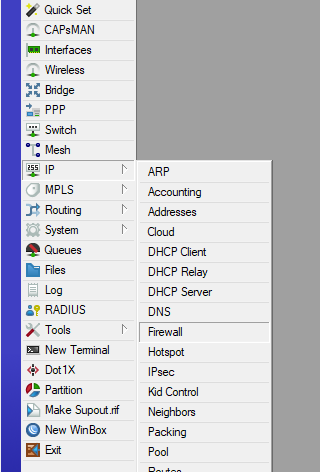
Select “IP” – > “Firewall”.

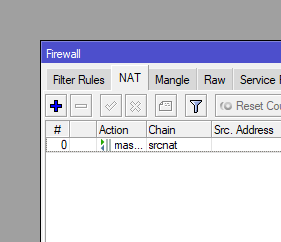
Select NAT.

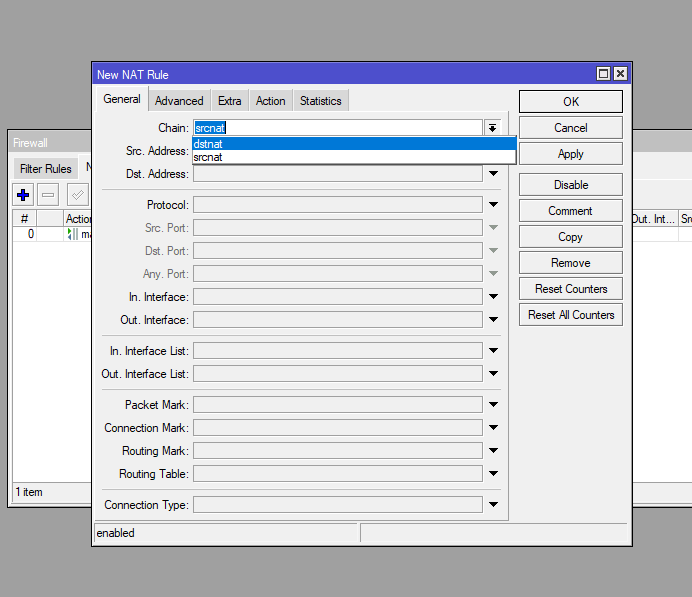
Click on plus and select “Chain” -> “dsnat”.

Enter dst.address – this is tipically public IP address of Mikrotik router.

Enter protocol type (for HTTP this is “tcp”).

Enter dst.port – port, what will be NAT-ed.

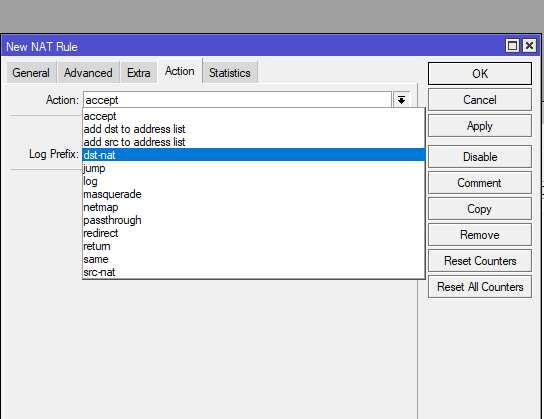
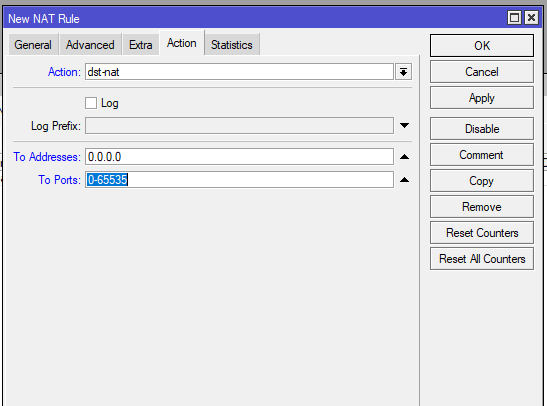
Click “Atcion” tab.

Select “Action” -> “dst-nat”.

Enter value for “To address“ – this is private ip of internal server (web server in our case).

Enter value for “To ports“ – this is port on private server (80 for http).

Click “Ok”. All done.

Case: remote execution in Linux

Case: Customer have appliance from vendor running Linux. Customer have no access (restricted by agreement with vendor) to scheduler on server. Customer want periodically gather some information from applience and use it.

Solution: Create shell script on Linux server, owned by customer. Schedule it on customers server. In mentioned script use remote execution to gather required information from applience.

Shell script fragment:

sshpass -p 'pass1' ssh -t -p 2022 user1@cool.server.fqdn 'echo pass2 | sudo -S python /usr/share/super_cool_script.py | grep some_data' | tr -s " " | cut -d " " -f 6 | sed 's/\.//g' > local_data_file

What script do: connect to remoter server via ssh and port 2022. Use user1 and pass1 to authenticate during this process. On remote server gain root-leve access with sudo command and password pass2. Execute python script on remote server and select only some rows from feedback and transfer them to local server. Get selected data and strip it from unnesessary columns. Save data to file.

Case: Separate call-center/support team from production network and from management network

Customer have one big network with all users in same network fragment. Customer want to improve security.

Problem description: All employee reside in one big network fragment and have some level of access to all corporate servers. Production and support team span acros entire building.

Proposed solution: Split network in 4 fragments: servers, support, production and management. Restrict access to corporate servers with Fortigate firewall. Restrict access to corporate resources with access groups at AD.

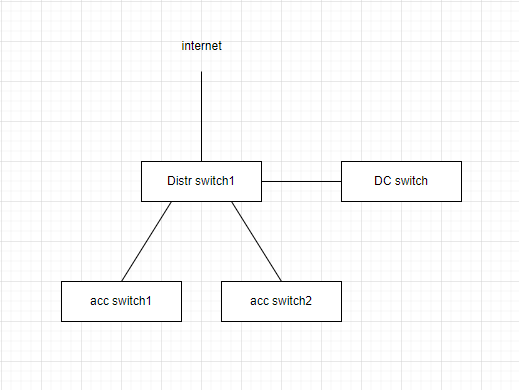
Initial schematic (fragment of network).

Implemented solution schematic (fragment of solution).

Note: Port-channel and spanning-tree were used for inter-switch connection for redundancy.

Configuration fragments.

DC switch:

interface Ethernet0/1
 description Connection to Fortigate FW
 switchport trunk encapsulation dot1q
 switchport mode trunk

Fortigate FW:

Create VLAN interfaces for connection to DC switch and to Distr switch 1.

Create firewall rules to allow traffic from end users to servers, connected to DC switch and to public network (internet).

Distrt switch 1:

interface Port-channel34
  description Port-Channel to Acc switch 1
interface Port-channel56
  description Port-Channel to Acc switch 2

interface Ethernet0/1
 description Connection to Fortigate FW
 switchport trunk encapsulation dot1q
 switchport mode trunk

interface Ethernet0/3
 description Connection to Acc switch 1
 switchport trunk encapsulation dot1q
 switchport mode trunk
 channel-group 34 mode active
interface Ethernet0/4
 description Connection to Acc switch 1
 switchport trunk encapsulation dot1q
 switchport mode trunk
 channel-group 34 mode active

interface Ethernet0/5
 description Connection to Acc switch 2
 switchport trunk encapsulation dot1q
 switchport mode trunk
 channel-group 56 mode active
interface Ethernet0/6
 description Connection to Acc switch 2
 switchport trunk encapsulation dot1q
 switchport mode trunk
 channel-group 56 mode active

Acc switch 1

interface Port-channel12
  description Port-Channel to Distr switch 1
interface Port-channel48
  description Port-Channel to Acc switch 2

interface Ethernet0/1
 description Connection to Distr switch 1
 switchport trunk encapsulation dot1q
 switchport mode trunk
 channel-group 12 mode active
interface Ethernet0/2
 description Connection to Distr switch 1
 switchport trunk encapsulation dot1q
 switchport mode trunk
 channel-group 12 mode active

interface Ethernet0/3 - Ethernet0/10
  description To support team
  switchport
  switchport access vlan 100
  no shutdown
interface Ethernet0/11 - Ethernet0/20
  description To management team
  switchport
  switchport access vlan 200
  no shutdown
interface Ethernet0/21 - Ethernet0/46
  description To production team
  switchport
  switchport access vlan 300
  no shutdown

interface Ethernet0/47
 description Connection to Acc switch 2
 switchport trunk encapsulation dot1q
 switchport mode trunk
 channel-group 48 mode active
interface Ethernet0/48
 description Connection to Acc switch 2
 switchport trunk encapsulation dot1q
 switchport mode trunk
 channel-group 48 mode active

Acc switch 2

interface Port-channel12
  description Port-Channel to Distr switch 1
interface Port-channel48
  description Port-Channel to Acc switch 1

interface Ethernet0/1
 description Connection to Distr switch 1
 switchport trunk encapsulation dot1q
 switchport mode trunk
 channel-group 12 mode active
interface Ethernet0/2
 description Connection to Distr switch 1
 switchport trunk encapsulation dot1q
 switchport mode trunk
 channel-group 12 mode active

interface Ethernet0/3 - Ethernet0/10
  description To support team
  switchport
  switchport access vlan 100
  no shutdown
interface Ethernet0/11 - Ethernet0/47
  description To production team
  switchport
  switchport access vlan 300
  no shutdown

interface Ethernet0/47
 description Connection to Acc switch 1
 switchport trunk encapsulation dot1q
 switchport mode trunk
 channel-group 48 mode active
interface Ethernet0/48
 description Connection to Acc switch 1
 switchport trunk encapsulation dot1q
 switchport mode trunk
 channel-group 48 mode active