Clear swap at Linux

Swap is used for cases, when system run out of available RAM. If server have no available RAM for process, it will crush/hung. Swap way extremely low, comparable to RAM and add extra load to disks.

When you run a lot of Linux servers it is a great idea to have “swap cleaner” clear up swap space during low-load time (night-time usually). Thi script used for this procedure.

Drop it at /etc/cron.daily to make it run daily.

It will check it server have enough available RAM, before running.

Code:

#!/bin/bash

free_mem=”$(free | grep ‘Mem:’ | awk ‘{print $7}’)”
used_swap=”$(free | grep ‘Swap:’ | awk ‘{print $3}’)”

echo -e “Free memory:\t$free_mem kB ($((free_mem / 1024)) MiB)\nUsed swap:\t$used_swap kB ($((used_swap / 1024)) MiB)”
if [[ $used_swap -eq 0 ]]; then
echo “Congratulations! No swap is in use.”
elif [[ $used_swap -lt $free_mem ]]; then
echo “Freeing swap…”
sudo swapoff -a
sudo swapon -a
else
echo “Not enough free memory. Exiting.”
exit 1
fi
What is MTU, why do we need to have same MTU values on both sides of link and how to troubleshoot issues with MTU.

MTU in networks is Maximum Transmission Unit. And basically, it indicates the maximum size of packet what could be processed by network device without fragmentation. The default MTU is 1500, therefore, all packets what is bigger than 1500 bytes, should be fragmented to successfully transferred by network devices.

Misconfiguration of MTU on different sides of link could lead to some “strange” network issues, as default behavior for switch is to drop packet if it is bigger, than MTU, configured for interface.
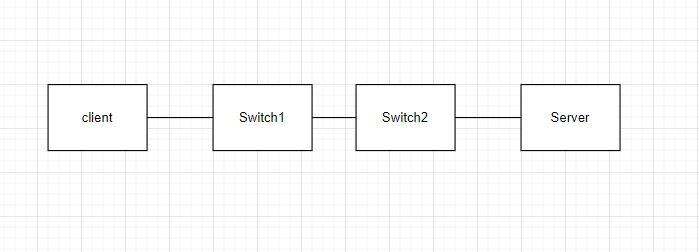
Refer to attached picture. It has two switches, configured with default values of 1500 on all interfaces.
All traffic goes successfully in both directions. Packets smaller than 1500 bytes (like ping) go freely and packets bigger than 1500 bytes (like ftp traffic) will be fragmented, but still passing.

Now let’s imagine we have misconfigured MTU at switch1 on port facing switch2. Let’s say it is configured with another default value of 9000 bytes.
In this case ping still go fine in both directions, but when we try to do file transfer (with ftp), it will fail in one direction, while successfully pass in another: We still be able to download anything from “server” to “client”, but unable to upload anything to “server”, as switch1 will try to transmit bigger chunks of data (9000 bytes), and switch2 will drop all of this packets, as they are bigger, than configured MTU on interface, facing switch1.

How to diagnose issue: with standard tools – ping and tracert. Both tools have ability to be configured to send bigger packets (like 2000 bytes).

When using PPPoE or GRE, you also should pay attention to MTU size and make sure it is configured correctly.

How to limit usage of RAM for buff/cache at Linux in 9 easy steps.

First i should mention: Playing mindlessly with this could lead to server instability.

In some cases, some applications “eats” unbelievable amount of memory for buffers/cache, what could lead to different negative outcomes.
For example, if server has 48Gb of RAM and some application uses 40Gb of this RAM for buffer/cache, it might be a good idea to limit RAM usage for this application.
It is up to you to decide if it worth to limit application RAM usage.

So, 9 easy steps:
1. Ensure that cgroups are enabled in your Linux system by checking if the cgroup_enable=memory option is present in the kernel command line. Edit the /etc/default/grub file and update the GRUB_CMDLINE_LINUX parameter if required.

2. Install cgroup-tools: 
#yum install cgroup-tools

3. Create a new cgroup directory to control memory usage: 
#mkdir /sys/fs/cgroup/memory/limited_group

4. Set the memory limit for the cgroup directory. 
#echo “1G” | sudo tee /sys/fs/cgroup/memory/limited_group/memory.limit_in_bytes

5. Edit the /etc/cgconfig.conf file. Adding this will set restriction to 1G:
group limited_group {
   memory {
    memory.limit_in_bytes = 1G;
   }
  }

6. Edit the /etc/cgrules.conf file. Assign Application aaaa1 to limited group
  :aaaa1 containment limited_group/

7. Restart service to apply changes 
#service cgconfig restart

8. Verify that the cgroup is created and the “aaaa1” application is limited: 
#cgget -g memory:/limited_group/aaaa1

9. Easy, right?

Fault tolerant Zabbix monitoring cluster

Let’s say, you decided to NOT use a great complex solution from SolarWinds, but still look for a great monitoring solution. In this case, Zabbix is your best friend. Its flexibility could be a great asset for the company, but it is still not the ideal solution. Here is a simple solution to how to build up a fault-tolerant Zabbix cluster.

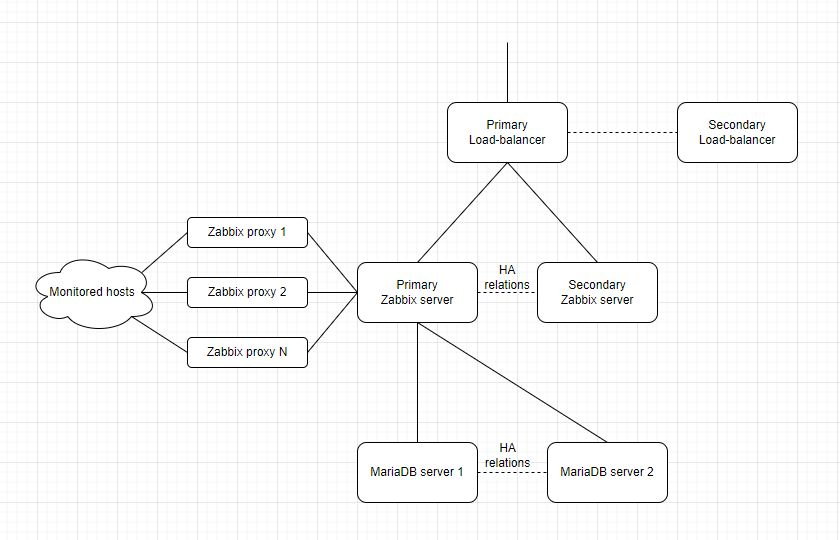
What we would like to achieve: we would like to have a fault-tolerant front end (Zabbix server + Web UI), fault-tolerant backend (database cluster), and the ability to monitor thousands of hosts with hundreds of items/parameters at each, and we could set data gathering period to 1 min, to have a huge amount of historical and actual data. I tested this solution with a HIGH number of gathered parameters (more than 300k items queried every minute) and a HUGE database (~1Tb). Solution working fine, without any noticeable delays in queries. Should note: The efficiency of a solution depends on assigned resources and the configuration of servers – resource shortage and bad configuration will lead to degraded performance, glitches, and potential instability of the cluster.

The solution itself:
Front-end and Zabbix server = Nginx + Zabbix web UI + native Zabbix HA. (2 servers are enough).
Database cluster solution = MariaDB + Galera (I`m advising to use 3 or more database servers, but still working fine with 2 database servers. Notice: yep, subject of assigned resources and server configuration).
Zabbix proxy = dockerized Zabbix proxy (if you need to run custom scripts – you will need to rebuild the docker container). Notice: yep, also the subject of assigned resources and server configuration (and container configuration).

If you do this with the right resources and correct configuration you will get a great monitoring solution.

Fault tolerant DNS cluster

Yep. For small companies, it might be not important, how you build/configure your DNS servers, as you might need to serve just a few queries per second or a few queries per minute. But good design is key to success if your goal is to serve thousands and thousands of queries per minute or second.
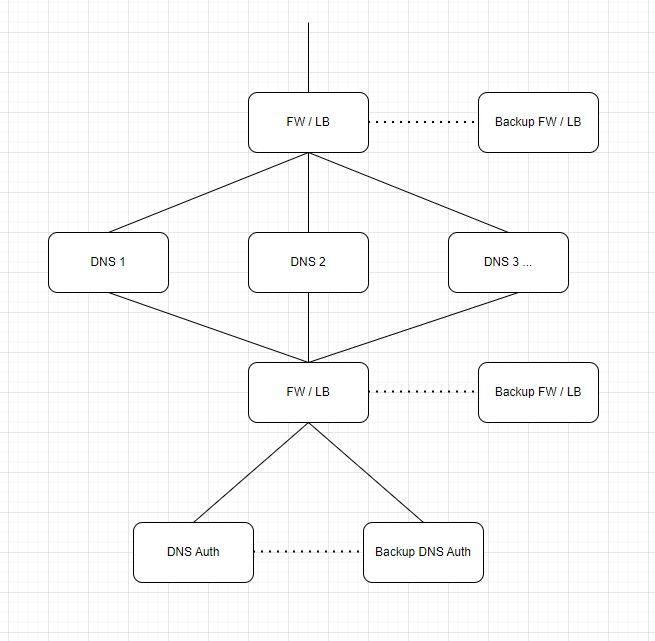
Here is an example of a design that will allow you to achieve this goal.

Queries go from up to down (to the DNS cluster).

The first line – “FW/LB” – is Load Balancer. Any. It could be a Fortigate firewall, working in pair with another firewall, It could be an F5 Load balancer, a solution based on Cisco devices.

The second line – is a group of DNS servers. It is not a cluster, but standalone DNS servers, configured as DNS caches, this means they will store recent DNS queries in memory (in case no records are present in memory DNS server will query Auth DNS server), and I`m advising you to use three DNS servers. But you can use more, or less. That depends on your tasks/goals, but never use a single server.

The third line – “FW/LB” again. With the same purpose – to rebalance queries between Auth DNS servers.

The fourth line (last, but not least important) – Authoritative DNS servers. In this case, the best practice is to use two: primary and backup servers with zone transfer between them. But you can also use more servers or less (if you feel lucky), that again depend on how big your system load is.

You can even create a fifth line and call it the “source of truth” and put the primary (master) DNS server there, living only backup (secondary) DNS servers in the fourth line.